Joining with an invite
Someone shared an invite with you — this page gets you signed up and into the right place in about a minute.
Three ways to join
Section titled “Three ways to join”Open the invite link
Click the link you were sent (it looks like app.aimetier.com/auth?invite=…). The sign-up form opens with the invite already filled in — you just add your name, email, and a password.
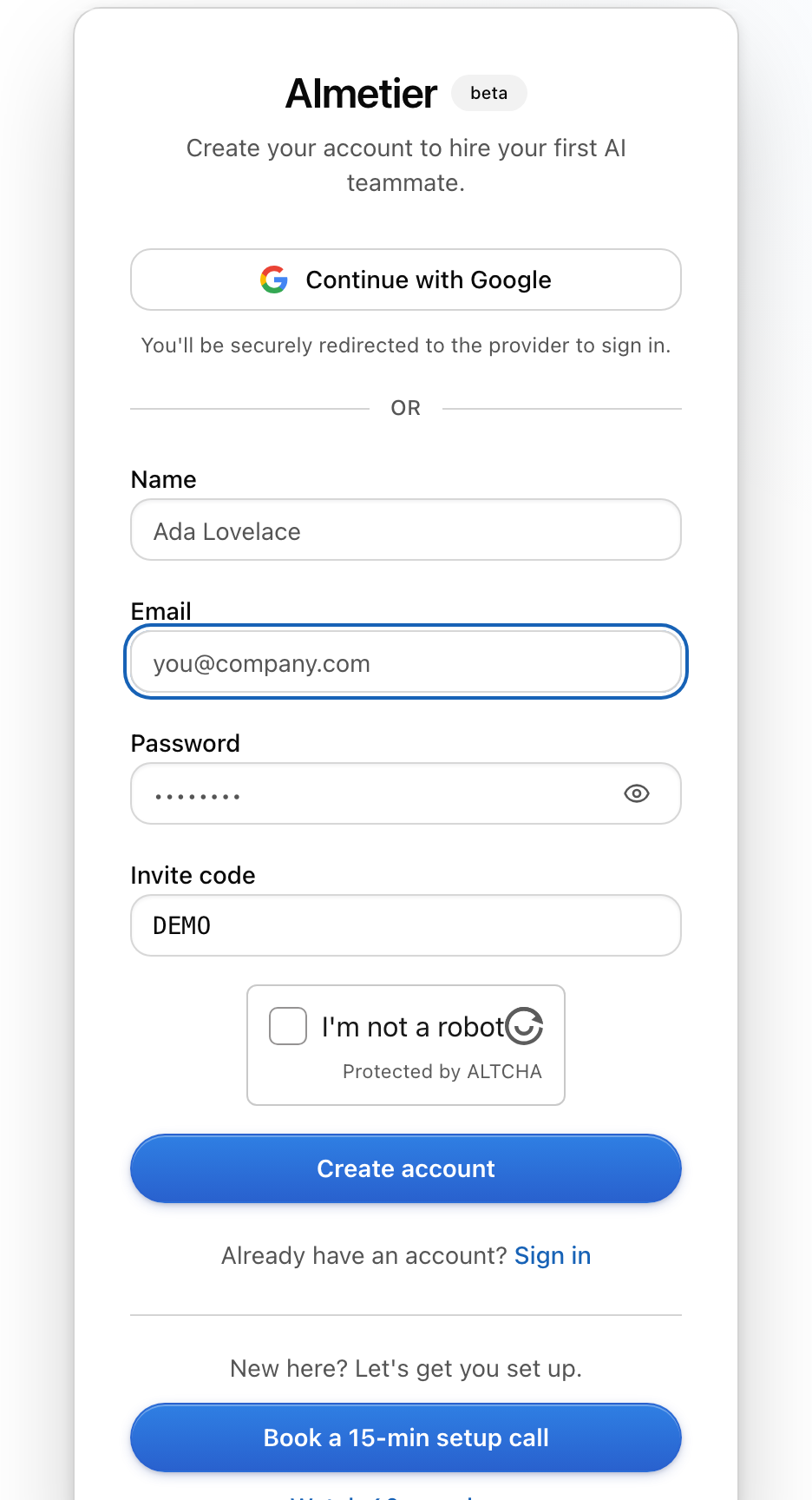
Or type the code on sign-up
No link? Go to app.aimetier.com, choose Create an account, and type the invite code you were given. It’s the same form — the code just tells us which workspace you’re joining.
Or scan the QR
At an event or on a flyer, point your phone camera at the QR code. It opens the same prefilled sign-up page as the link — no typing needed.
Finish creating your account
Fill in your name, email, and a password, then choose Create account. If you see a quick “I’m not a robot” check, complete it — it only appears on sign-up.
What happens after you join
Section titled “What happens after you join”Either way, you get your own account — your own login, separate from whoever invited you. What differs is where you land:
Join an existing company
You become a member of a workspace someone already set up. You’ll see the teammates and work that are already there. To add more people later, see Members and invites.
Start your own company
A multi-use invite (one link or QR shared with many people) gives each person their own fresh company. You’ll be walked through a short setup to describe your work and hire your first teammate.
You’re safe to try it
Section titled “You’re safe to try it”An invite is just a faster door in. It doesn’t change any of the defaults that keep you in control.
No card. No connecting your email. Nothing gets sent without your OK.
Your teammates also check each other’s work before calling it done, and Ask before sending is ON — so nothing goes out until you give the final OK.
What if it isn’t working?
Section titled “What if it isn’t working?”If the link, code, or QR doesn’t take, walk these in order:
- The link looks broken or won’t open. Copy the whole thing into your browser’s address bar — chat apps sometimes cut long links in half.
- “Sign-up is currently disabled.” The invite may have run out or expired. Ask the person who invited you for a new one.
- “An account with that email already exists.” You’ve signed up before — choose Sign in instead of creating a new account.
- The verification check won’t pass. Refresh the page and try once more; it resets each time.
- You typed the code and nothing happened. Re-check it for typos, then paste it instead of typing — extra spaces are easy to miss.
Still stuck? Head to Getting help and we’ll sort it out.
Do I need a credit card to use an invite?
No. Signing up with an invite never asks for a card. No card, no connecting your email, and nothing gets sent without your OK.
Will joining give the other person access to my account?
No. You create your own account with your own password. Joining an existing company means you can see that workspace’s work — it doesn’t share your login or your email.
Can the same invite be used by more than one person?
Yes, if it’s a multi-use invite (common for events or a shared QR). Each person who uses it gets their own account, and a multi-use invite gives each person their own fresh company.
My invite expired — what now?
Just ask whoever sent it to share a new one. Invites can run out or time out, and a fresh link or code fixes it.
I already have an AImetier account — can I still use an invite?
Use Sign in with your existing account. Invites are for creating a new account; if yours already exists, signing in is the way in.
Next steps
Section titled “Next steps”Welcome to AImetier
New here? Start with the friendly tour of what your teammates can do.
Launch your first team
Select one or more digital employees and put them to work in minutes.
Members and invites
Already in? Invite teammates of your own and manage who’s on the team.
Getting help
Something not working? Here’s how to reach us.